Here is your blog post for My Core Pick.
Stop Typing the Same Thing Twice: How Text Expansion Can Save You Hours Every Week
I want you to think about the last email you sent.
Did you type out your email address?
Did you type out "Best regards," or your signature?
Did you have to look up a Zoom link and paste it in?
If you answered "yes" to any of those, you are wasting time.
I don’t mean you are wasting a few seconds here and there. I mean you are leaking hours of productive time every single week.
We live in a world where speed matters. Yet, most of us treat our keyboards like typewriters from the 1950s. We manually keystroke every single character, over and over again.
It’s tedious. It’s boring. And quite frankly, it’s unnecessary.
Today, I’m going to introduce you to the single most impactful productivity change I’ve made in the last decade.
It’s called Text Expansion.
Here is how you can stop typing the same thing twice and reclaim your schedule.
What Exactly Is Text Expansion?

At its core, text expansion is simple automation for your keyboard.
It works on a system of "triggers" and "snippets."
You type a short abbreviation (the trigger), and your computer automatically replaces it with a longer piece of text (the snippet).
How It Works in Practice
Let’s say my email address is name@mycorepick.com.
Typing that out takes about 20 keystrokes. It also requires me to stretch for the @ symbol and make sure I don't make a typo.
With text expansion, I set up a rule.
When I type the characters ;em, the software instantly snaps my full email address into place.
I type three characters. I get twenty characters on the screen.
It feels like magic.
But it isn’t just for email addresses.
You can use it for paragraphs of text, code blocks, current dates, or even complex email templates with fill-in-the-blank sections.
It is the ultimate "set it and forget it" tool for your digital life.
The Hidden Cost of Repetition
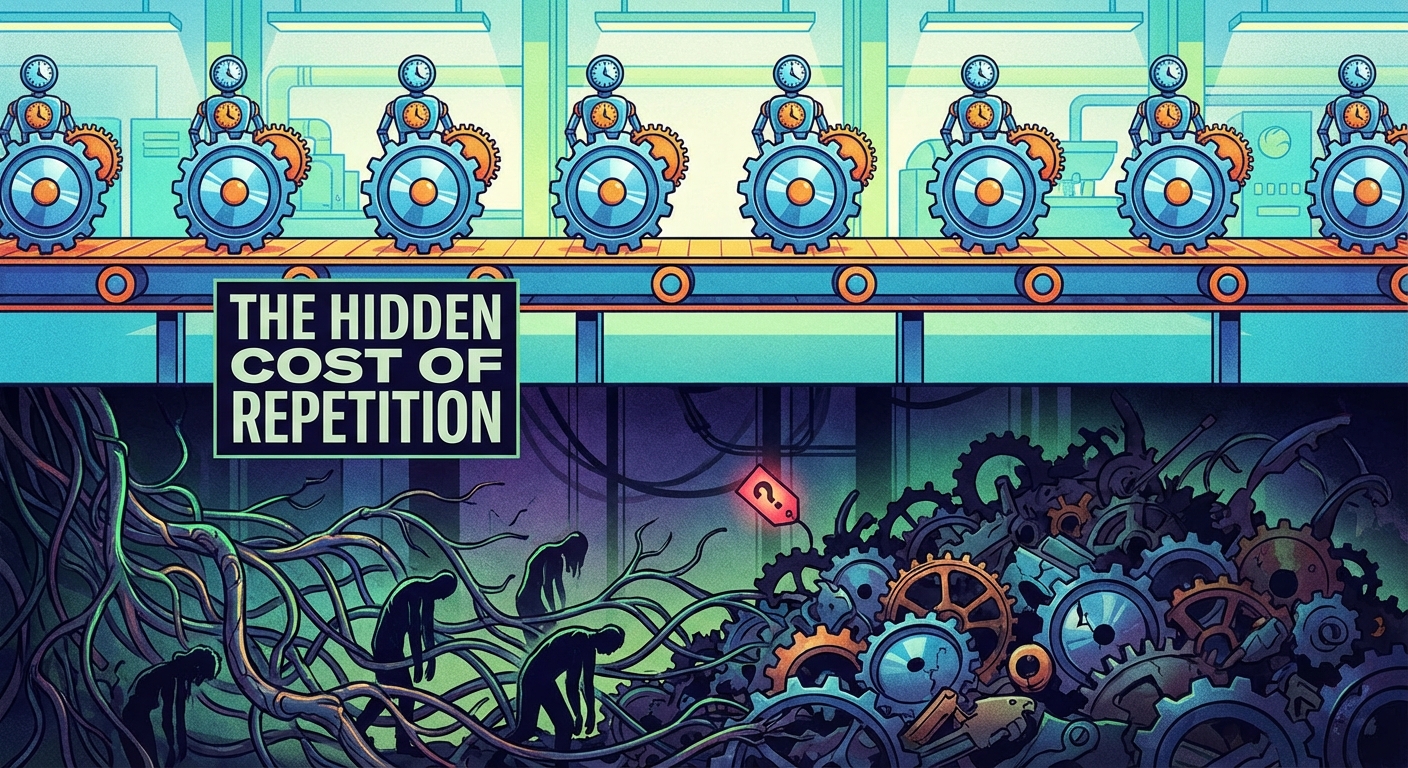
You might be thinking, "It only takes me two seconds to type my phone number. Why does this matter?"
I used to think that too.
But the cost of manual typing isn't just about the seconds on the clock. It’s about the mental friction.
The Focus Breaker
Every time you pause to look up a link to send to a client, you break your flow state.
You have to leave your email tab. Open a new tab. Search for the link. Copy it. Go back to the email. Paste it.
That tiny interruption opens the door for distraction.
Maybe you see a Slack notification while you're grabbing that link. Suddenly, you've lost 15 minutes.
Text expansion keeps you in the window you are working in.
You type ;zoom, and your meeting link appears. You never break eye contact with your work.
The Accuracy Problem
How many times have you mistyped your own phone number on a form?
Or misspelled a client's name?
Or sent a link that was broken?
Human error is inevitable when you are typing the same data repeatedly. We go on autopilot, and our fingers slip.
Text expansion guarantees 100% accuracy every single time.
If you program the snippet correctly once, it will never be wrong again. That peace of mind alone is worth the setup time.
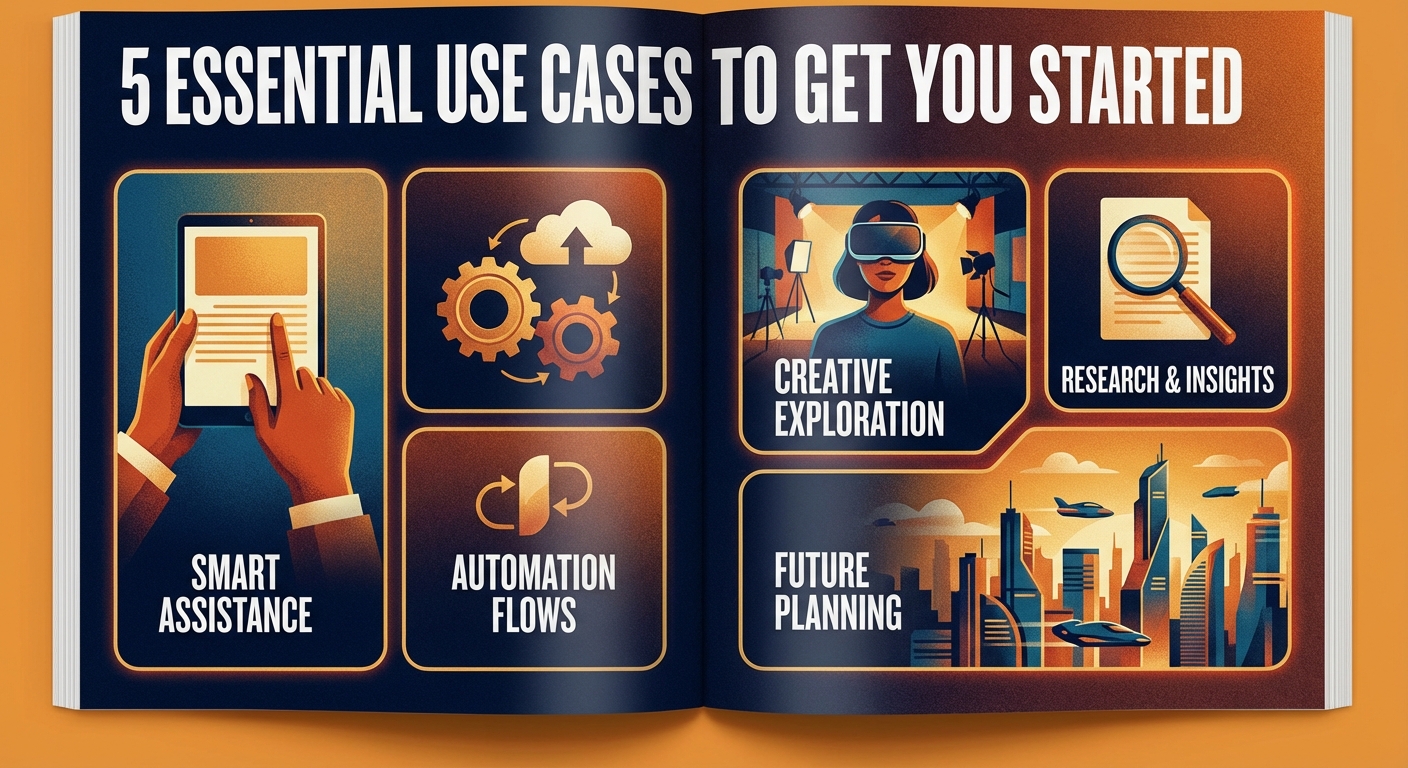
5 Essential Use Cases to Get You Started
If you are new to this, it can be hard to know where to begin.
I recommend starting small.
Here are the five categories where I use text expansion every single day.
1. Personal Information
This is the low-hanging fruit.
You should never type your email address, phone number, or street address manually.
Create triggers like:
* ;em for email.
* ;ph for phone number.
* ;add for your physical address.
I use a semicolon at the start of my triggers to prevent accidental expansion while typing normal words.
2. Email Management
I receive dozens of emails asking the same three questions.
Previously, I would write a fresh reply to each one. It was exhausting.
Now, I have snippets for:
* Standard greetings.
* "Thanks, but I'm not interested" rejections.
* Instructions for guest posting on the blog.
* My calendar scheduling link.
I can compose a three-paragraph email response in about four seconds.
3. URLs and Links
Do you have a specific landing page you send people to?
Maybe a LinkedIn profile, a portfolio, or a specific Google Drive folder?
Stop bookmarking them. Stop searching for them.
Assign them a short trigger.
I use ;linkedin to drop my profile URL into chats instantly. It makes networking seamless.
4. Code and Formatting
If you are a developer or a writer, you know the pain of syntax.
I write in Markdown constantly.
Instead of manually typing out the syntax for a link or an image, I use a snippet.
It drops the brackets and parentheses in place and puts my cursor right where I need to type.
Developers use this for div tags, standard CSS resets, and common Python scripts.
5. Date and Time
How often do you type today's date?
Most text expansion tools have dynamic variables.
I can type ;dd and it automatically expands to the current date in the format I prefer (e.g., October 24, 2023).
I can even type ;nextfri to calculate and insert the date of the upcoming Friday.
It removes the need to check the calendar entirely.
Going Pro: Advanced Text Expansion Strategies
Once you get hooked on the basics, you’ll want more power.
This is where text expansion transforms from a "typing tool" into a "workflow engine."
Fill-in-the-Blank Snippets
Let’s say you send a monthly report to clients.
The body of the email is always the same, but the specific metrics change.
Advanced tools allow you to create "forms" within your snippets.
When I trigger the snippet, a popup window appears.
It asks me for the "Client Name," "Monthly Revenue," and "Growth Percentage."
I fill those three boxes and hit Enter.
The software generates the entire email, placing those variables into the correct sentences.
It creates a highly personalized email with zero effort.
Clipboard Management
You can nest your clipboard inside a snippet.
Here is a common scenario: I copy a URL.
I want to turn that URL into a hyperlinked word in an email.
I highlight the word "Here," trigger my snippet, and the software automatically turns "Here" into a link using the URL I had copied to my clipboard.
It saves me three clicks and a shortcut command.
Cursor Placement
Have you ever typed a pair of parentheses () and then had to use the arrow key to move your cursor back into the middle?
You can program snippets to place the cursor exactly where you want it after the text expands.
It sounds like a small detail.
But when you are writing code or complex documents, those arrow-key movements add up.
How to Choose the Right Tool
You are sold on the concept. Now, which tool should you use?
The market is full of options, but they generally fall into three categories.
The Built-In Options (Free & Simple)
If you are on a Mac, you already have this.
Go to System Settings > Keyboard > Text Replacements.
You can set up basic triggers here. It syncs across your iPhone and iPad too.
Windows has similar features, though they are often buried in settings.
These are great for simple things like email addresses, but they lack advanced features like forms or cursor placement.
The Powerhouse Apps (Paid & Robust)
If you are serious about saving hours, you need a dedicated app.
TextExpander is the industry leader. It works on Windows and Mac, offers team sharing, and has powerful scripting.
Espanso is an open-source, cross-platform option that is incredible if you are comfortable with configuration files.
Alfred (for Mac users) includes a snippets feature that is very fast and integrates with your system search.
Browser Extensions
If you work entirely in Chrome or on a Chromebook, a browser extension might be best.
Tools like Magical or TextBlaze live inside your browser.
They are excellent for people who work in web-based CRMs like Salesforce or Zendesk.
The "Set It Up As You Go" Method
Here is the biggest mistake people make with text expansion.
They install the software. They sit there for two hours trying to think of everything they ever type.
They get overwhelmed. They quit.
Don’t do that.
Here is the "Three Strike Rule" I use at My Core Pick:
- Strike One: You type something tedious. You get annoyed. You finish typing it.
- Strike Two: You type it again later that day. You think, "I should make a snippet for this."
- Strike Three: You have to type it a third time. Stop immediately.
Create the snippet right then and there.
Most apps have a hotkey to create a new snippet instantly.
If you do this, you will naturally build a library of snippets that actually helps you, rather than a library of things you think you might need.
Reclaiming Your Time
We often talk about "productivity hacks" that are just complicated ways to do simple things.
Text expansion is different.
It is pure efficiency. It removes the friction between your brain and the screen.
When you stop worrying about typos and formatting, you can focus on the content of what you are writing.
You become a better communicator because it is easier to be thorough.
You become a faster worker because you aren't bogged down by repetition.
Start with your email address today.
Then add your signature.
Then your Zoom link.
By the end of the week, you won’t just feel faster. You’ll feel like you’ve unlocked a superpower.
Stop typing the same thing twice. Your future self will thank you.