Raise your hand if you’ve had to reset a password this week.
I see you.
We have all been there. You try your usual password. Then the variation with the capital letter. Then the one with the exclamation point at the end.
Nothing works.
So, you hit "Forgot Password," check your email, create a new code, and promise yourself you’ll remember it this time.
But let’s be honest—you won’t.
For decades, we have relied on this outdated system of secret codes to protect our entire digital lives. It is stressful, insecure, and frankly, annoying.
But here is the good news: the era of the password is officially ending.
Enter the Passkey.
At My Core Pick, we are huge advocates for technology that simplifies life rather than complicating it.
Today, I’m going to walk you through exactly what passkeys are, why they are safer than what you’re using now, and how you can make the switch in minutes.
What Exactly Are Passkeys?
First things first: what is a passkey?
If the name sounds fancy, don’t worry. The concept is incredibly simple.
A passkey is a digital credential that is stored on your device—like your smartphone, tablet, or laptop—rather than on a server.
Think of it like a digital key card for a hotel room.
When you use a password, it’s like shouting a secret code through a closed door hoping the person inside recognizes it.
If someone overhears that code (or hacks the server), they can get in.
A passkey changes the game.
Instead of a code you have to remember, your device performs a secure "handshake" with the website you are trying to visit.
You don’t type anything.
You simply unlock your device using FaceID, TouchID, or your device PIN, and you are in.
It’s Not Just a "Saved Password"
It is important to make a distinction here.
This is not the same as your browser autofilling a password you saved three years ago.
That is still a password—it’s just being typed by a computer.
A passkey is completely different technology based on cryptography.
There is nothing to type, nothing to see, and most importantly, nothing to steal.
Why I Finally Made the Switch (And You Should Too)

I was skeptical at first.
I have spent years curating a massive database of complex passwords in my password manager.
Why fix what isn’t technically broken?
But once I started using passkeys, I realized just how broken the old system actually was.
Here is why I am never going back.
1. You Cannot Be Phished
This is the biggest selling point.
Phishing attacks—where scammers trick you into typing your password into a fake website—are the number one cause of data breaches.
With passkeys, phishing is mathematically impossible.
Since you don’t know your passkey (it’s stored securely on your chip), you cannot accidentally give it to a hacker.
If the website isn’t legitimate, your device simply won’t offer to use the passkey.
It is a security safety net that works automatically.
2. No More "Mental Gymnastics"
Do you have a different password for every account?
You should, but most people don't.
Most people recycle the same three passwords across banking, social media, and email.
If one site gets hacked, they all get hacked.
With passkeys, there is nothing to remember.
Your brain is free to remember birthdays and anniversaries instead of whether you used "P@ssword1" or "P@ssword2."
3. It Is Incredible Fast
I didn’t realize how much friction passwords added to my day until they were gone.
Logging in with a passkey takes about two seconds.
The prompt pops up. I scan my fingerprint. I am logged in.
It feels like magic every single time.
How Do Passkeys Work? (In Plain English)
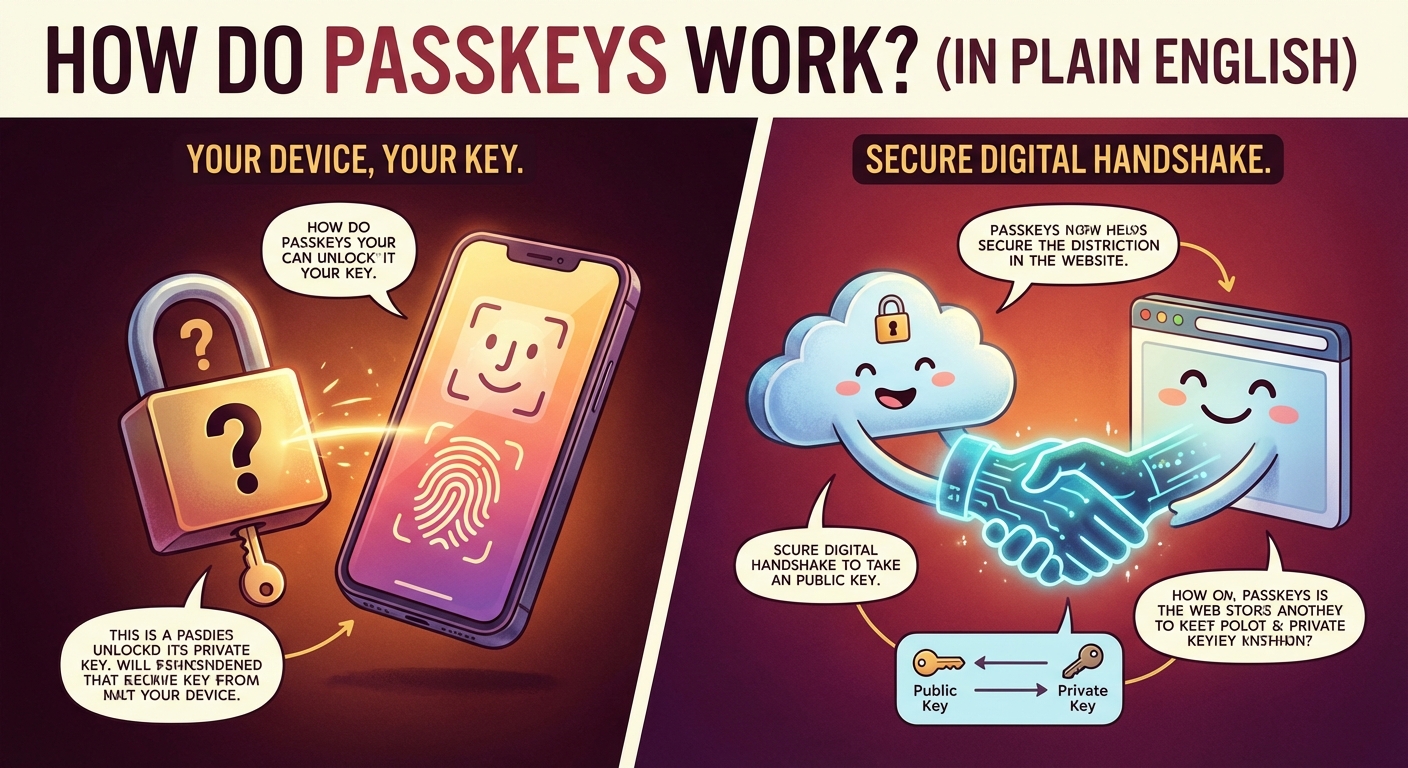
You don’t need a computer science degree to use passkeys, but understanding the basics helps alleviate the fear of the unknown.
The technology relies on something called Public Key Cryptography.
When you create a passkey for a site like Google or PayPal, two keys are generated.
The Public Key
One key is sent to the website. This is the "Public Key."
It’s like a padlock.
The website holds onto this padlock, but it cannot unlock it.
It doesn’t matter if hackers steal this key from the website’s server because it’s useless without the other half.
The Private Key
The second key is stored securely on your device. This is the "Private Key."
This is the key that opens the lock.
It never leaves your phone or computer.
When you try to log in, the website presents the padlock (Public Key).
Your device proves it has the Private Key by solving a complex mathematical puzzle.
You authorize this action with your biometrics (face or fingerprint).
Once the puzzle is solved, the door opens.
No secrets are ever shared over the internet.
A Simple Guide to Setting Up Your First Passkey
Ready to try it?
The transition is happening right now, and major players like Apple, Google, and Microsoft are leading the charge.
You don’t have to switch everything at once.
I recommend starting with your biggest accounts.
Here is how you can do it today.
Setting Up a Google Passkey
Google has made this incredibly easy.
- Go to your Google Account settings.
- Click on Security on the left-hand side.
- Scroll down to "How you sign in to Google."
- You will see an option for Passkeys. Click it.
- Click Create a Passkey.
That’s it.
Your phone or computer will ask for your fingerprint or face scan to confirm.
The next time you log in to Gmail, you won’t type a password. You’ll just scan your thumb.
Setting Up on Apple Devices
If you are in the Apple ecosystem, you might be using passkeys without even knowing it.
Apple stores passkeys in your iCloud Keychain.
When you create an account on a supported site (like eBay or Kayak) using Safari, it will often ask: "Do you want to save a passkey?"
Say yes.
The passkey automatically syncs across your iPhone, iPad, and Mac.
It is seamless.
Using 1Password or Dashlane
If you are like me and use a dedicated password manager, there is great news.
Top-tier managers like 1Password and Dashlane now support passkey storage.
This is my preferred method.
Why?
Because it makes your passkeys "device agnostic."
If I save a passkey in 1Password, I can use it on my Windows PC, my iPhone, and my Android tablet.
I’m not locked into just using Apple or just using Google.
What Happens If...? (Answering Your Fears)
I know what you are thinking.
"This sounds great, but what if I lose my phone?"
It is a valid concern.
When your credentials are physical devices, losing the device feels like losing your identity.
Let’s debunk a few common fears.
What if I lose my phone?
If you use a cloud ecosystem (like Apple iCloud or Google Password Manager), your passkeys are synced to your account, not just that specific piece of glass and metal.
If you lose your iPhone, you buy a new one.
You sign in to your Apple ID.
Your passkeys are restored immediately.
If you use a third-party manager like 1Password, it’s even easier. You just log into your vault on the new device, and your keys are there.
What if I need to log in on a friend's computer?
This was my biggest worry.
If my key is on my phone, how do I log in to my email on a library computer?
The industry thought of this.
When you try to log in on a stranger's device, you select "Use a passkey from another device."
A QR code will appear on the screen.
You scan that QR code with your phone’s camera.
Your phone connects via Bluetooth (to ensure you are physically close to the computer) and authenticates the login.
You get in securely, and you leave zero trace on the public computer.
Can I still use passwords?
For now, yes.
We are in a transition period.
Most websites allow you to keep your password as a backup method.
However, as time goes on, you will find yourself using that backup option less and less.
Eventually, you might even delete the password entirely for maximum security.
The Future is Passwordless
The switch to passkeys isn’t just a trend.
It is the new standard for the internet.
The FIDO Alliance (the group setting these standards) includes Apple, Google, Microsoft, and Amazon.
They have all agreed that this is the way forward.
I have moved about 20 of my personal accounts to passkeys so far.
The relief of not having to update them, rotate them, or type them is immense.
It feels like the internet has finally caught up to the way we live.
Your Homework for Today
I don’t want you to feel overwhelmed.
You don’t need to spend your Saturday afternoon migrating your entire digital life.
Just try one.
Go to Google, Amazon, or Uber.
Look into the security settings and set up one passkey.
Experience that first login where you just scan your face and get in.
Once you feel that speed and ease, you will want to switch everything else.
Goodbye, passwords. We won’t miss you.