Here is a blog post written specifically for My Core Pick.
Why You Should Always Put Smart Devices on Your Guest Wi-Fi
We love smart home gadgets here at My Core Pick.
There is something undeniably cool about turning off your lights with a voice command.
Or checking your video doorbell from a beach in Mexico.
Or having your coffee maker start brewing the moment your alarm goes off.
But as our homes get smarter, they also get more vulnerable.
Every new device you add to your network is a potential door for cybercriminals.
And unfortunately, many of these "doors" have very cheap, flimsy locks.
Today, I want to talk about the single most effective (and free) change you can make to secure your digital life.
It’s time to move your smart devices to your Guest Wi-Fi network.
The Problem with the "Internet of Things" (IoT)

The Internet of Things, or IoT, refers to all those connected gadgets that aren't computers or phones.
Smart fridges, light bulbs, thermostats, and robotic vacuums fall into this category.
While they are convenient, they are often a security nightmare.
Here is why they are the weak link in your home network.
Security is an Afterthought
When manufacturers build a \$15 smart plug, their main goal is functionality and low cost.
Security usually takes a backseat.
Many of these devices lack advanced encryption.
Some even ship with hard-coded passwords that cannot be changed.
This makes them incredibly easy targets for hackers scanning the web for vulnerabilities.
The "Update" Void
Think about your smartphone or your laptop.
You probably get notifications every few weeks to install security updates.
Now, ask yourself this: When was the last time you updated the firmware on your smart toaster?
Probably never.
Many IoT manufacturers stop supporting devices shortly after release.
This means if a security flaw is discovered, it stays there forever.
It becomes a permanent open window into your home.
Understanding Lateral Movement
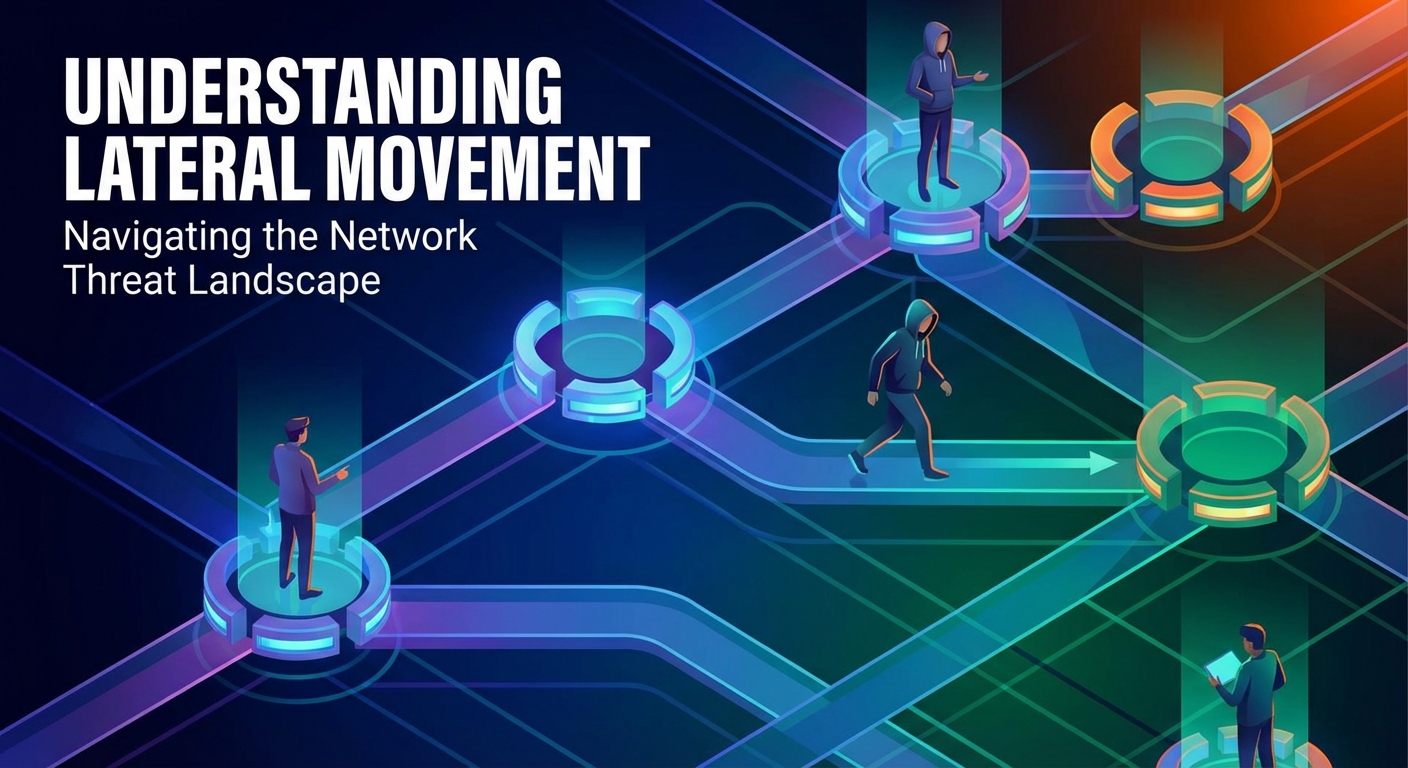
You might be thinking, "Why would a hacker want to hack my light bulb?"
"What are they going to do, change the color to purple?"
The reality is much scarier.
Hackers don't care about the light bulb itself.
They care about what the light bulb is connected to.
The Hop, Skip, and Jump
In cybersecurity, we call this "lateral movement."
If your smart bulb is on the same network as your personal laptop, they can talk to each other.
A hacker can compromise the weak security of the bulb first.
Once they are "inside" the network via the bulb, they can scan for other devices.
They look for your MacBook, your NAS drive, or your smartphone.
Because they are already inside the local network firewall, your laptop trusts them more than it should.
This allows them to inject malware, steal banking passwords, or deploy ransomware.
Your \$20 smart switch just became the gateway to identity theft.
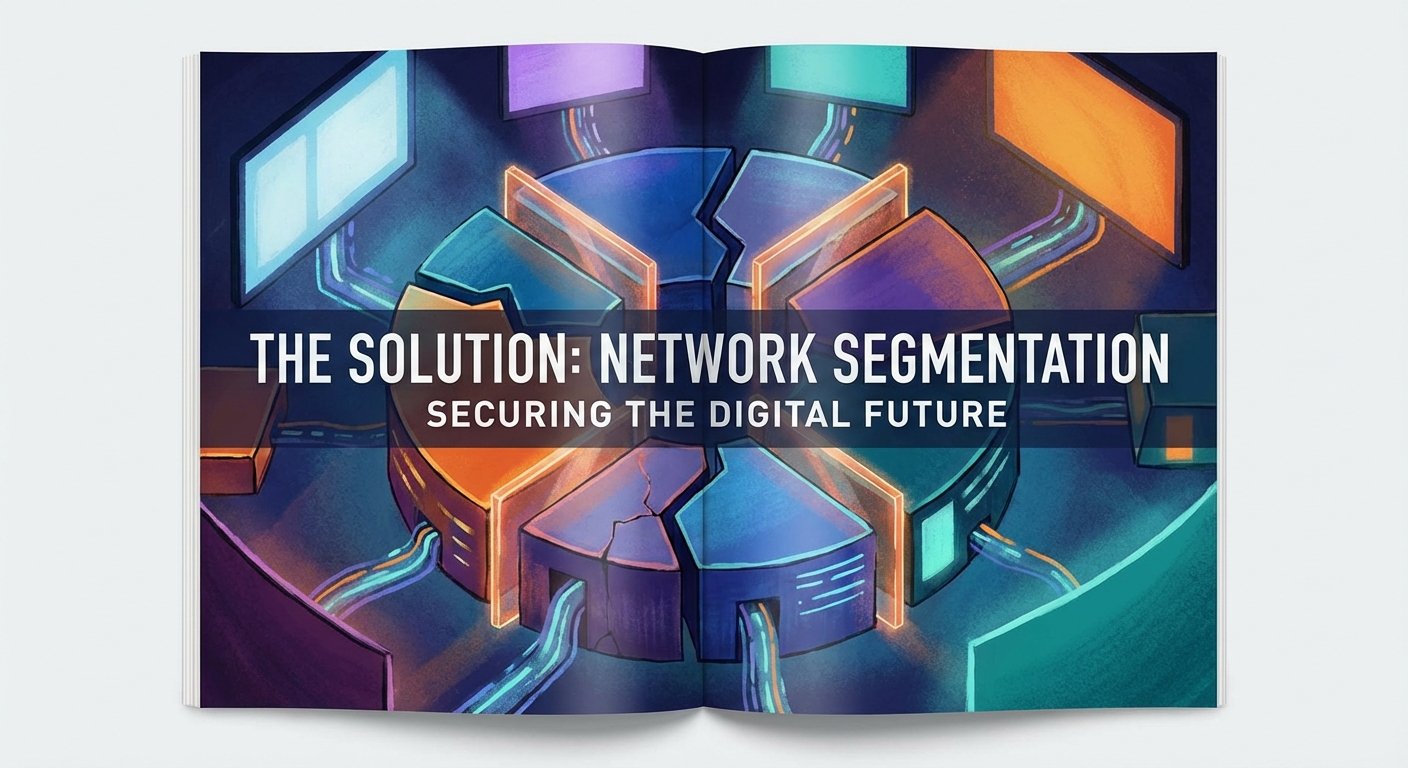
The Solution: Network Segmentation
This sounds terrifying, I know.
But the fix is surprisingly simple.
It is a technique called "Network Segmentation."
In enterprise environments, IT pros use expensive hardware to separate departments.
At home, you can do this using a feature you already have: The Guest Wi-Fi.
The "House Party" Analogy
Think of your primary Wi-Fi network as your master bedroom.
This is where you keep your jewelry, your diary, and your safe.
You only want your most trusted family members (your phone, your PC) in there.
Now, think of the Guest Wi-Fi as your front porch or a detached garage.
When the delivery driver (the smart fridge) comes over, they stay on the porch.
They can still do their job.
They can still connect to the internet.
But they cannot open the door and walk into your bedroom to rummage through your drawers.
By putting smart devices on the Guest network, you are quarantining them.
If a hacker compromises the fridge, they are stuck on the porch.
They cannot make the jump to your laptop because the router keeps the two networks completely separate.
How to Set It Up
Ready to secure your home?
You don't need to be a tech wizard to pull this off.
Here is a simple walkthrough on how we do it at My Core Pick.
1. Access Your Router Settings
You will need to log into your router's admin panel.
This is usually done by typing an IP address (like 192.168.1.1) into your browser.
Or, if you have a modern mesh system like Eero or Google Nest, you just open the app.
2. Enable the Guest Network
Look for the "Guest Network" settings.
Toggle it to "On."
Give it a name different from your main network (e.g., "MyCorePick_IoT").
3. Set a Strong Password
Do not leave it open.
Even though it is for guests and smart devices, it needs a password.
Use WPA2 or WPA3 security.
Create a complex password that is different from your main network.
4. Enable "AP Isolation" (Crucial Step)
This setting might have different names depending on your router brand.
Look for "Client Isolation," "AP Isolation," or a checkbox that says "Allow guests to see each other."
You want to make sure guests cannot see each other or the main network.
Some routers do this automatically for guest networks.
This ensures that even if one smart device gets a virus, it cannot spread it to the other smart devices.
5. Migrate Your Devices
This is the tedious part.
You have to go through your smart home apps (Alexa, Google Home, Tuya, etc.).
Go to the Wi-Fi settings for each device.
Forget the main network.
Connect them to the new Guest network.
Take your time with this—do a few devices a day if you have a lot.
The "Zombie" Device Threat
There is another reason to segregate your network that benefits the whole internet.
It prevents your devices from becoming "Zombies."
What is a Botnet?
Hackers often create armies of infected devices called "Botnets."
They infect thousands of poorly secured smart cameras and DVRs.
They don't steal your data.
Instead, they use your device's processing power to attack other websites.
This is called a DDoS (Distributed Denial of Service) attack.
You Could Be an Accomplice
In 2016, a massive attack (the Mirai botnet) took down major chunks of the internet.
It was powered largely by hacked home devices.
Your baby monitor could be attacking Netflix right now without you knowing it.
By isolating these devices on a Guest network with strict settings, you limit the damage they can do.
You help keep the internet safer for everyone.
Are There Any Downsides?
At My Core Pick, we believe in being 100% transparent.
Moving everything to a Guest network is safer, but it can break a few features.
Here is what you need to watch out for.
The Chromecast Issue
Devices like Google Chromecast or Apple AirPlay rely on being on the same network as your phone.
If your phone is on the Main network and your TV is on the Guest network, you might not be able to "cast" YouTube videos.
For these specific streaming sticks, you might have to keep them on your Main network.
However, they are generally more secure than a generic smart bulb, so the risk is lower.
Local Control vs. Cloud Control
Most smart devices today rely on the Cloud.
When you ask Alexa to turn on the light, the signal goes to the internet and comes back.
These work perfectly across separate networks.
However, some "local control" hubs require direct communication.
If you are a power user running Home Assistant locally, network segmentation gets tricker.
You may need to set up advanced firewall rules instead of a simple Guest network.
But for 99% of users, the Cloud connection is all that matters, and the Guest network works flawlessly.
Initial Setup Friction
When you first set up a new device, your phone usually needs to be on the same Wi-Fi.
This means you might have to temporarily switch your phone to the Guest Wi-Fi to configure a new plug.
Once it is set up, you can switch your phone back to the Main network.
It is a minor annoyance for a major security upgrade.
The "IoT Network" Feature
I want to mention one positive trend we are seeing in new routers.
Router manufacturers are finally catching on.
Newer models from brands like Asus, TP-Link, and UniFi are introducing a dedicated "IoT Network" setting.
Better Than Guest Mode?
This acts exactly like a Guest network but is designed specifically for smart devices.
It isolates them from your main computer but allows them to talk to their own hubs.
It is the best of both worlds.
If you are in the market for a new router, look for one with this feature.
If you have an older router, the Guest Wi-Fi trick is still your best bet.
Final Thoughts
We live in a connected world.
I am not suggesting you throw away your smart speakers or go back to analog thermostats.
Smart home technology is amazing.
It saves energy, adds convenience, and makes life fun.
But we have to be realistic about the risks.
We cannot trust a \$10 smart bulb with the keys to our digital banking.
By taking thirty minutes to move your gadgets to a Guest Wi-Fi, you build a digital wall.
You protect your personal data.
You protect your family's privacy.
And you gain peace of mind knowing that your refrigerator is just an appliance, not a spy.
So, check your router settings tonight.
Make the switch.
Your network (and your identity) will thank you.